Overview
Copy and paste functionality is one of the most fundamental yet powerful features on Android devices, enabling seamless information transfer between apps and documents. While the basic concept is simple, Android's clipboard system has evolved significantly, offering advanced features like clipboard history, cross-app compatibility, and intelligent suggestions that can dramatically improve your productivity.
This comprehensive guide covers everything from basic copy-paste operations to advanced clipboard management techniques for 2025. Whether you're using stock Android, Samsung's One UI, or other manufacturer skins, you'll learn how to master your device's clipboard capabilities and work more efficiently across all your applications.
Basic Copy and Paste Methods
Copying Text
- Tap and hold on any text until selection handles appear
- Drag the handles to select your desired text
- Tap "Copy" from the context menu that appears
- The text is now saved to your clipboard
Pasting Text
- Tap and hold any text input field
- Select "Paste" from the context menu
- Your copied text will appear instantly
- Works across most Android applications
Cutting Text
- Select text using the same method as copying
- Choose "Cut" instead of "Copy" from the menu
- This removes text from the original location
- Saves it to clipboard for pasting elsewhere
The long-press method works consistently across virtually all Android applications, from messaging apps and email clients to web browsers and document editors. This universal approach makes Android's copy-paste system incredibly reliable once mastered .
Advanced Clipboard Management
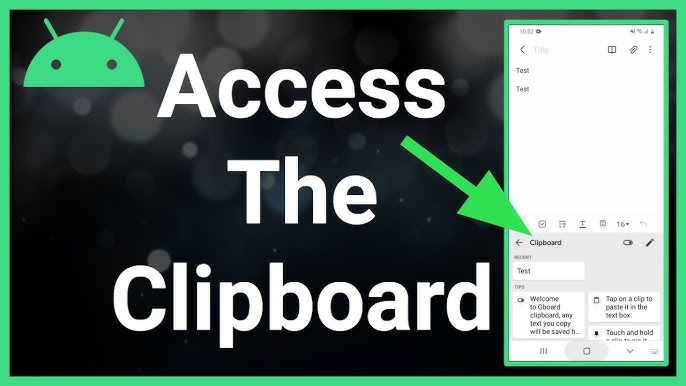
Gboard Clipboard History
Google's Gboard offers robust clipboard management that stores multiple items instead of just your last copy .
- Open any text field to activate Gboard
- Tap the clipboard icon above the letters
- View recently copied items (stores for 1 hour)
- Pin important items to save them longer
- Tap any item to paste it immediately
Samsung Keyboard Clipboard
Samsung devices include advanced clipboard features in their native keyboard .
- Open a text field to activate Samsung Keyboard
- Tap the three dots (⋮) on the toolbar
- Select "Clipboard" from the menu
- Access recent text and images
- Pin items to prevent automatic deletion
Standard Android clipboard only holds one item at a time and clears when you restart your device. For persistent clipboard history, you must use keyboard-specific features like Gboard's clipboard manager or Samsung's clipboard tools, which allow you to pin important items .
Keyboard Clipboard Features Comparison
- Stores items for 1 hour
- Pin important items
- Easy access from keyboard
- Google account sync available
- Stores text and images
- Pin items permanently
- Access via three-dot menu
- Integrated with One UI
- Extended history
- Cloud synchronization
- Advanced organization
- Cross-device support
Supported Data Types
Text and Links
- Plain text (most common)
- Formatted text with styling
- Website URLs and links
- Phone numbers and emails
Images and Media
- Screenshots and photos
- Images from galleries
- Some app-specific content
- Limited file support
Troubleshooting Common Issues
Clipboard Not Working
- Restart your device
- Update your keyboard app
- Check keyboard permissions
- Clear app cache and data
Security Considerations
- Avoid copying sensitive passwords
- Be aware apps can access clipboard
- Clear clipboard after sensitive use
- Use pinned items cautiously
If you use a physical keyboard with your Android device, you can use traditional keyboard shortcuts: Ctrl+C for copy, Ctrl+X for cut, and Ctrl+V for paste. This works particularly well with Samsung DeX and other desktop-style Android experiences .
Mastering Your Android Clipboard
Android's copy and paste functionality has evolved from a basic single-item clipboard to sophisticated management systems that can significantly enhance your productivity. By understanding both the fundamental techniques and advanced features available through keyboard apps like Gboard and Samsung Keyboard, you can work more efficiently across all your applications.
Remember that while the basic long-press method works universally, exploring your specific keyboard's clipboard features will unlock the true potential of Android's copy-paste system. Whether you need to manage multiple snippets, preserve important information, or troubleshoot common issues, these skills will serve you well throughout your Android experience in 2025 and beyond.